Screenshots Directory
This directory contains UI screenshots of the Aleteia donation platform.
Captured Screenshots ✅
Successfully captured 4 screenshots of the donation platform interface:
1. Landing Page
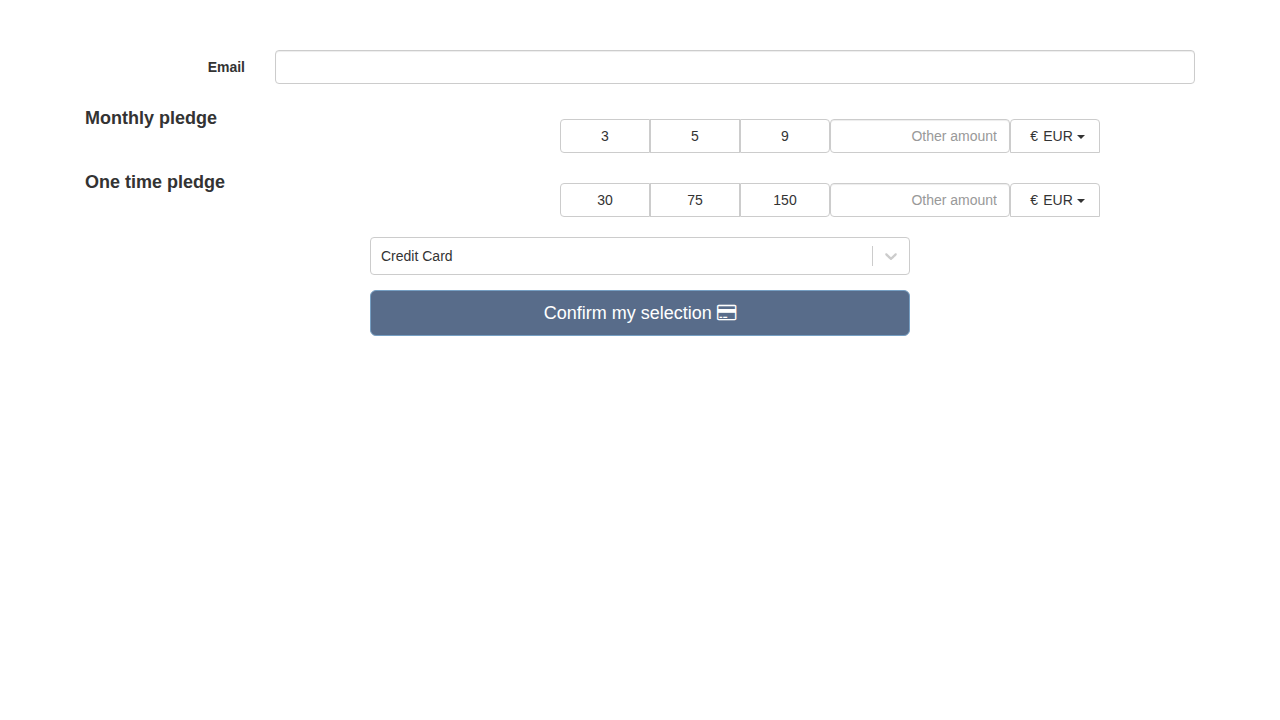
Initial donation landing page showing:
- Email input field
- Monthly pledge options (3, 5, 9 EUR)
- One-time pledge options (30, 75, 150 EUR)
- Currency selector (EUR/USD)
- Payment method dropdown
- Confirm button
2. Monthly Donation Selected
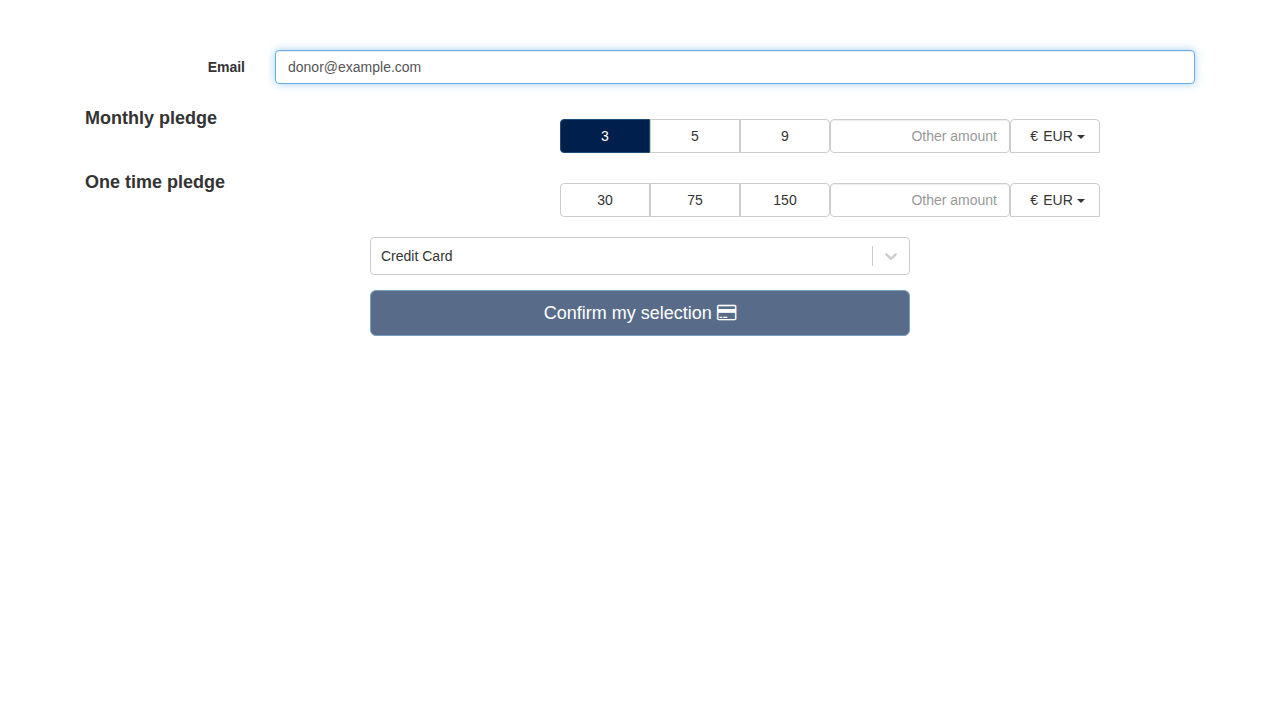
Monthly donation flow:
- Email entered: [email protected]
- 3 EUR monthly pledge selected (highlighted in dark blue)
- Shows active state of selected amount
3. One-Time Donation Selected
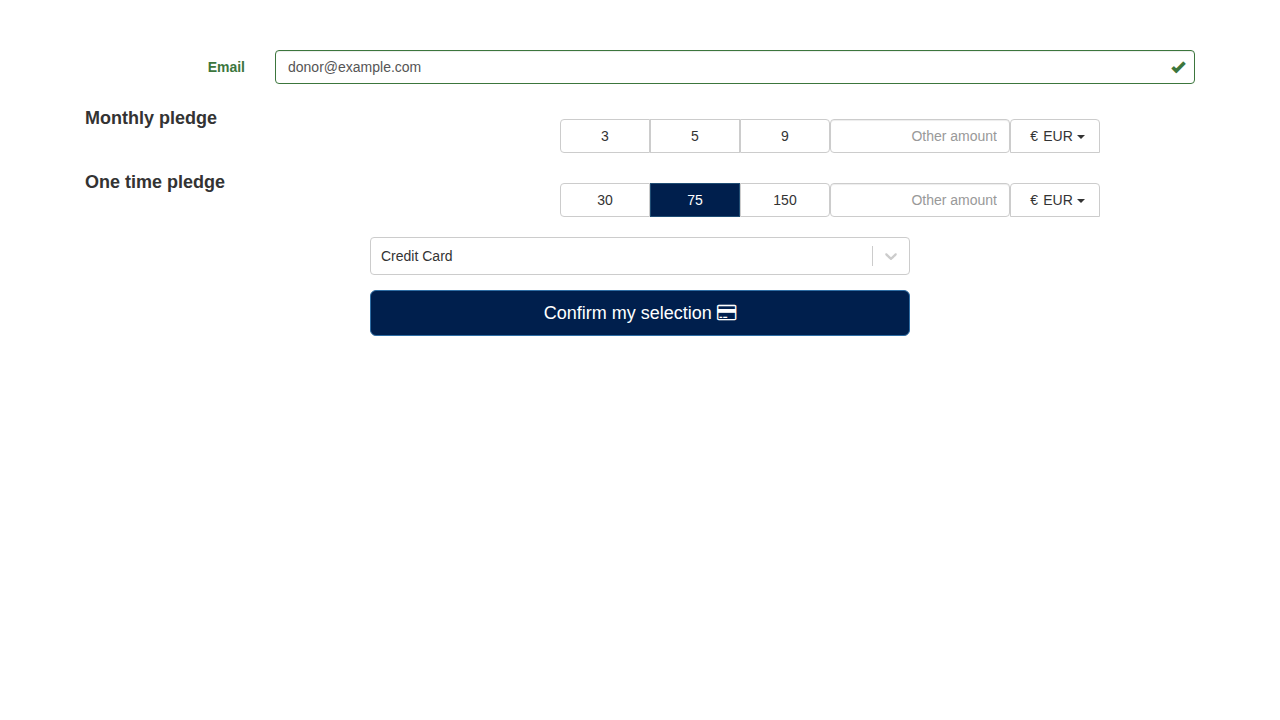
One-time donation flow:
- Email validated (green checkmark)
- 75 EUR one-time pledge selected
- Confirm button active (darker blue)
4. Payment Methods Dropdown
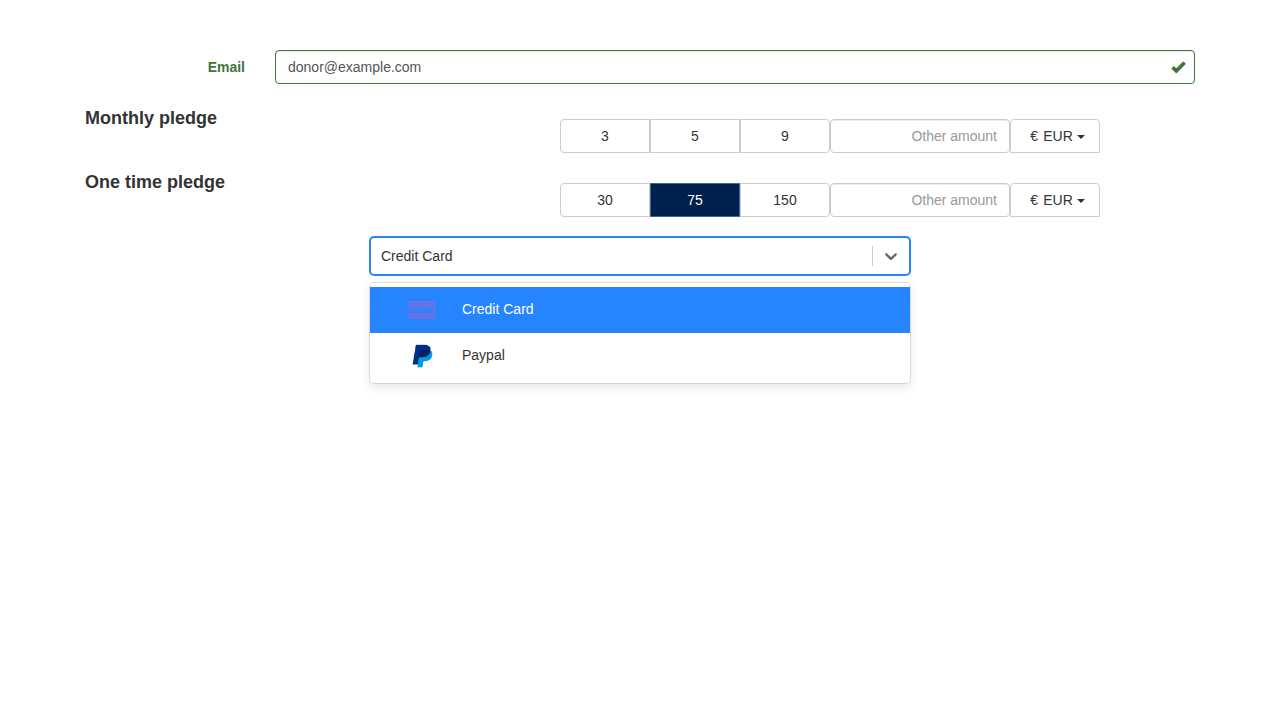
Payment method selection:
- Dropdown expanded showing available payment methods
- Credit Card option (with Stripe logo)
- PayPal option (with PayPal logo)
Capture Method
Screenshots were captured using Playwright with a temporarily modified Donations::RoutingConstraint that returned true for all requests, allowing navigation via localhost:3000 without subdomain complications.
Environment:
- Node 14.21.3
- Rails 7.0 in development mode
- webpack-dev-server serving assets
- Full React application loaded
Note: Some external resources (Stripe.js, Google Analytics) were blocked by CI environment but didn't affect the main UI capture.
Integration with Documentation
Screenshots are referenced in documentation files using relative paths:


Additional Screenshots To Capture
The following screenshots would enhance the documentation but require Stripe.js to be fully functional:
- Payment form with card details entry (Stripe Elements)
- 3D Secure authentication modal
- Success confirmation page
- Error states (declined card, validation errors)
- SEPA Direct Debit form
- Przelewy24 payment option
These can be captured in a proper development environment or staging where all external services are accessible.
Test Cards Reference
For testing different payment scenarios, use Stripe test cards:
Success:
4242 4242 4242 4242- Standard success- Expiry: any future date (e.g., 12/34)
- CVC: any 3 digits (e.g., 123)
3D Secure:
4000 0027 6000 3184- Requires 3DS authentication
Failures:
4000 0000 0000 0002- Card declined4000 0000 0000 9995- Insufficient funds
SEPA:
- Use test IBAN:
DE89370400440532013000
Full test card list: https://docs.stripe.com/testing